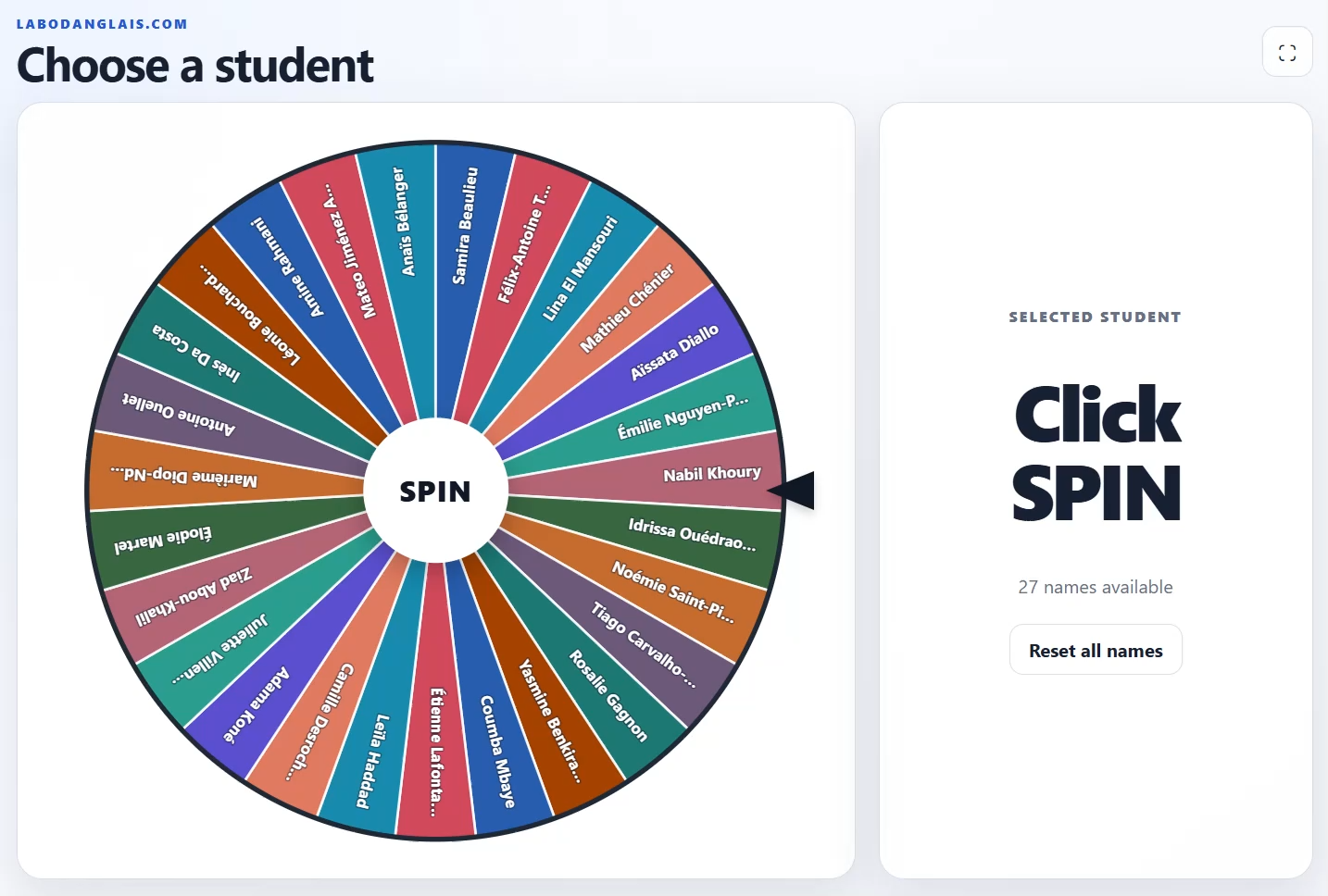
Encourage Participation with the Labodanglais Name Spinner
It’s the beginning of the semester. Your students are still a little shy, you’re trying to learn everyone’s name, and the same few volunteers answer every question.
The Labodanglais Name Spinner can help you encourage broader participation. With one click, it selects a student at random, helping you involve the whole class—not just the students who always raise their hands.
Once a student has been selected, their name is greyed out and won’t appear again until you reset the spinner. Keep spinning, and every student gets a turn—even the ones quietly hoping to disappear into the back row.
It’s a simple way to make participation fair, learn your students’ names, and bring a little energy to the classroom.
Two Ways to Create a Name Spinner
Labodanglais gives you two options for creating a spinner for your class: an easy way and an even easier way.
Let’s begin with the easy way.
Option 1: Upload Your Class List
First, download your class list from your college portal. Select the option that includes names only and download the list in Excel format.
Next, go to the Labodanglais Name Spinner.
Give your group a recognizable name, such as “Monday AM” or “Tuesday PM,” and upload your class list. Select the file from your device, and then click Review Class List.
You will have an opportunity to review the names and make any necessary changes before creating the spinner.
How Student Data Is Protected
Each spinner receives a cryptographically random, unguessable link. Directory browsing and direct access to the stored class-list files are blocked, and search engines are instructed not to index the spinner page. The stored class list automatically expires after six months.
However, anyone who receives the private link can open the spinner. Teachers should therefore be careful about where they post it and with whom they share it.
After reviewing the list, check the box confirming that you understand that anyone with the link can access the spinner. Then click Create Private Spinner.
Save Your Spinner Information
Once the spinner has been created, copy the private link and save it somewhere secure. You will not get another opportunity to retrieve it.
You can also copy the provided iframe code if you would like to embed the Name Spinner in a Moodle course page, blog, or another webpage.
At the bottom of the page, you will find a deletion link. Save this link if you would like to permanently delete the spinner before its automatic expiration date. If you forget, don’t worry: the spinner will self-destruct after six months.
Option 2: Use the Automatic Course Spinner
That was the easy way. Now let’s look at the even easier way.
If you have a course on Labodanglais.com, the Name Spinner is already available at the top of your course page. It is added automatically, so you don’t need to upload or enter any names.
Your enrolled students have already been added and separated into their course groups. Simply select the appropriate group and start spinning.
I told you it was easier.
Better tech for teachers, on Labodanglais.com.